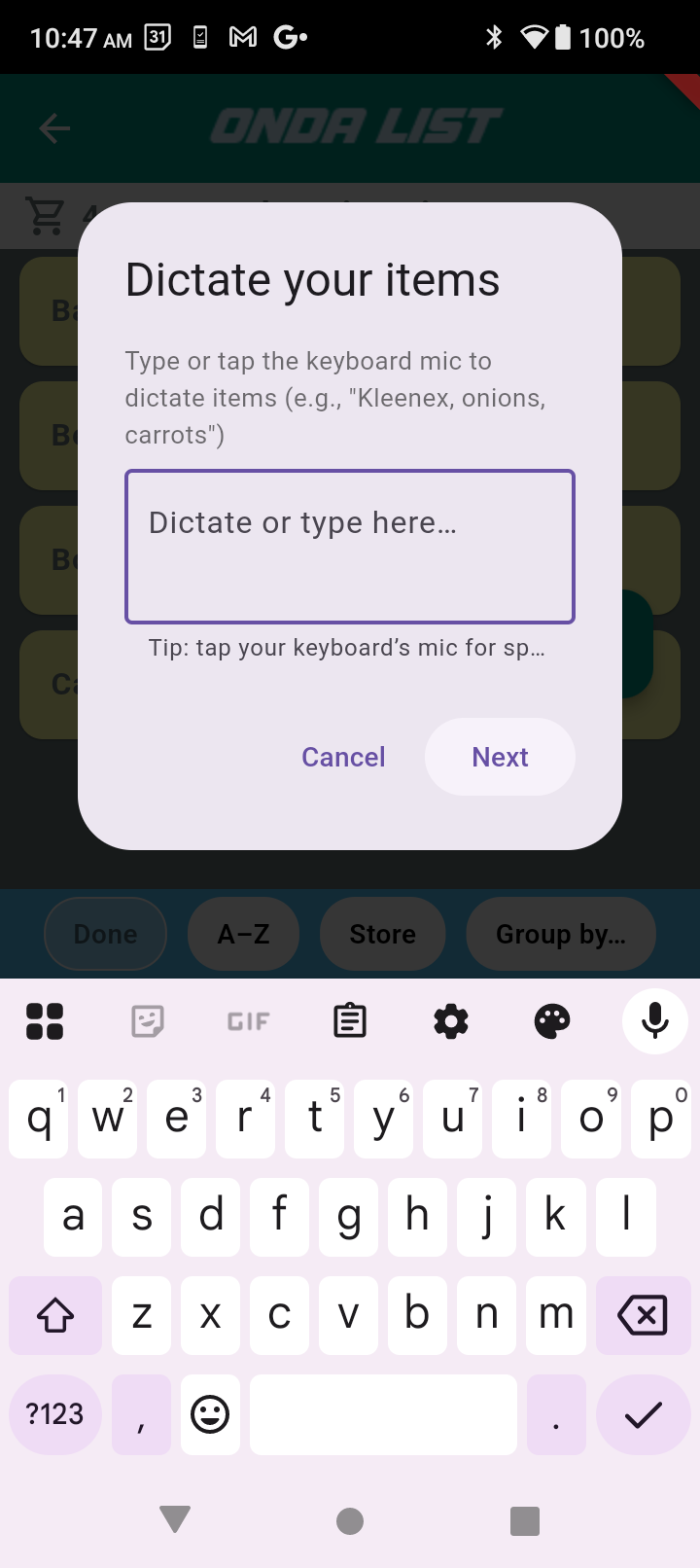
Using the microphone
Camera on
Display phone
Camera on David
ONDA LIST – Tutorial Video #2 (Your Voice)
Title: “If You Can Send a Text, You Can Use ONDA LIST”
SCRIPT FOR RECORDING
When I was creating ONDA LIST I knew one of the biggest hurdles was this: People resist learning something new.
Fair enough.
But here’s the truth:
If you can send a text message, you can use ONDA LIST.
The best part of ONDA LIST is using the microphone.
If you haven’t used the microphone to send a text before, try it.
Right now…
You don’t have to send it — just record it.
Or watch me.
When I open ONDA LIST, here’s the shopping list, and the microphone is right here.
I tap it…
then tap the mic on the keyboard…
and now it’s listening.
Oops — see?
It converted my talking to text.
I’ll cancel that and start again.
“Kleenex, carrots, onions, and paper towels.”
And I hit Next.
Now — Kleenex, carrots, and onions are already in the app.
But this becomes your app,
and it will start to think the way you think.
Those items are ready to add to the list.
Here are “paper” and “towels.”
Let’s make them a product.
Tap paper…
tap towels…
and merge.
Now “paper towels” is a new product in your list.
Next time I say “paper towels,”
ONDA LIST will recognize it immediately.
I just tap here —
and look —
all those items are now in the shopping list.
ONDA LIST uses dictation for all new items.
It’s easy,
the spelling is usually perfect,
and if anything needs fixing,
you can tap and edit.
Please visit our YouTube channel for more instruction videos.
[Fade out].